
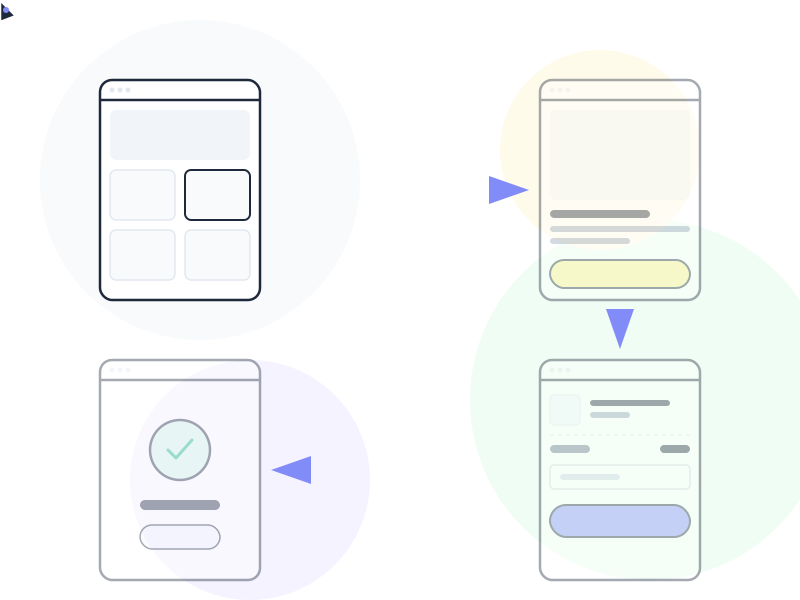
A user flow is a visual diagram that maps the sequence of steps a user takes to complete a specific task within a product. It shows every screen, decision point, and action from entry to goal completion – revealing where the experience works and where it breaks down.
Why It Matters
Designers often focus on individual screens in isolation – a polished login page here, a beautiful dashboard there. But users don’t experience screens in isolation. They experience flows. A checkout process, an onboarding sequence, a password reset – these are journeys with a beginning, middle, and end. If any step in the chain is confusing, broken, or unnecessary, the whole flow fails.
User flows force you to think in sequences instead of snapshots. They make it immediately visible when a path has too many steps, when users face unnecessary decisions, or when there’s no clear way back from a dead end. Problems that are invisible on a single-screen mockup become obvious the moment you map the full flow.
They’re also a powerful communication tool. Developers need to know what happens when a user taps “Submit” and the server returns an error. Product managers need to see how a new feature fits into the existing experience. User flows answer these questions visually, reducing misunderstandings and rework.
How It Works / Types
User flows come in several formats, each suited to different levels of detail.
Task Flows
The simplest type: a single path through a task with no variations. “User opens app → taps Search → enters query → selects result → views detail page.” Task flows assume one user persona taking one path. They’re fast to create and useful for mapping happy paths.
Wire Flows
A combination of flowchart and wireframe. Each step shows a simplified screen layout, connected by arrows indicating user actions. Wire flows are more detailed than task flows and give developers a better sense of what each step looks like, not just what it does.
User Flow Diagrams
The most comprehensive format. These include multiple entry points, decision branches (if/else), error states, and alternative paths. They use standard flowchart shapes – rectangles for screens, diamonds for decisions, arrows for transitions. User flow diagrams capture the full complexity of a feature, including edge cases.
Start with task flows for initial exploration, then move to wire flows or full diagrams as the design matures and you need to communicate details to the broader team.
Real-World Example
Consider the “forgot password” flow in Gmail. The user clicks “Forgot password?” on the login screen. Google doesn’t immediately ask for a new password – instead, it presents a series of verification options: the last password you remember, a code sent to your recovery phone, a code sent to your recovery email, or identity verification questions.
Each verification method branches into its own sub-flow. If the phone code fails, the user can try email. If email fails, they can try security questions. The flow handles multiple failure scenarios gracefully, always offering the user a next step instead of a dead end.
Mapping this flow reveals both its genius and its complexity. Without a user flow diagram, it would be nearly impossible to design, review, and implement all these branching paths correctly.
How to Apply
-
Define the user’s goal before mapping steps. Every flow starts with a clear objective: “complete a purchase,” “invite a team member,” “export a report.” If you can’t state the goal in one sentence, the flow is probably too broad – break it into smaller flows.
-
Map the happy path first. Start with the ideal scenario where everything goes right: the user knows what to do, the data is valid, the system responds instantly. Get this path right before adding error states, edge cases, and alternative branches.
-
Include entry points and exit points. How does the user arrive at this flow? From a marketing email? A dashboard link? A search result? Different entry points may require different first steps. Similarly, document where the user lands after the flow completes.
-
Add error states and edge cases. What if the payment fails? What if the user’s session expires? What if the uploaded file is too large? These scenarios need designed responses, not just error codes. Every error state should offer a clear path forward.
-
Validate flows with usability testing. Watch real users attempt the task your flow describes. Where do they hesitate? Where do they backtrack? Where do they give up? Testing reveals gaps between your intended flow and the user’s actual experience.
Common Mistakes
Mapping only the happy path. The ideal scenario is the easy part. Real users encounter errors, change their minds, get interrupted, and return later. If your flow only covers the perfect run, developers will improvise the error handling – and improvised error states are where users get stuck.
Making flows too granular. A flow that documents every micro-interaction – hover states, tooltip appearances, loading spinners – becomes unreadable. Focus on meaningful steps: screens, decisions, and actions that change the system’s state. Save micro-details for wireframes and interaction specifications.
User flows often lead directly into prototypes – particularly wireflows, where each step in the diagram becomes a clickable screen. Well-designed flows also have measurable outcomes: tracking conversion rate at each step reveals exactly where users drop off and which design changes have the highest impact.
Confusing user flows with user journeys. A user flow maps steps within your product to complete a specific task. A user journey maps the broader experience across channels, touchpoints, and emotions – including interactions outside your product. They’re complementary tools with different scopes: flows are tactical, journeys are strategic.
Further Reading
- User Journeys vs. User Flows – Nielsen Norman Group’s guide to understanding when to use flows vs. journey maps
- What are User Flows? – Interaction Design Foundation’s overview of user flow types and best practices