
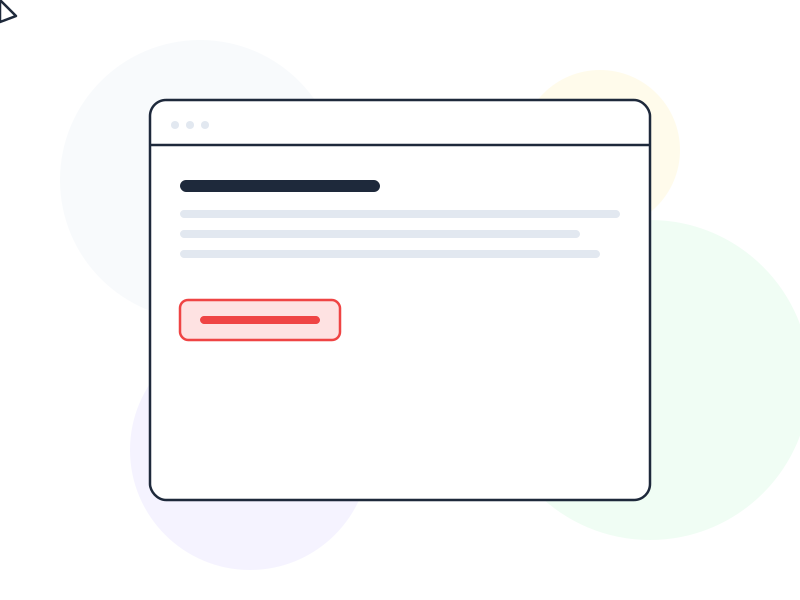
A modal in UX design is a dialog element that appears in front of the main page content, temporarily blocking interaction with the rest of the interface and requiring the user to take an explicit action – confirm, dismiss, or complete a task – before returning to their previous context.
Why It Matters
Modals command attention in a way that most UI elements can’t. They interrupt whatever the user was doing and demand engagement. That power makes them useful for a specific category of interactions – and actively harmful when misapplied.
Used correctly, a modal UX design pattern protects users from irreversible consequences (deleting data, making payments), focuses attention on a decision that genuinely requires it, or presents a compact task without the overhead of navigating to a separate page. Used incorrectly – as a newsletter popup that appears before users have read a single word, or as a cookie consent wall that obscures the entire page – modals become one of the most reliable ways to frustrate users and drive abandonment.
The distinction comes down to whether the interruption serves the user or the business. Interrupting a user to confirm a destructive action serves them; interrupting them to request an email address 5 seconds after they arrive serves only the business.
How It Works / Modal vs Non-Modal
Modal dialogs block interaction with the background content until the user acts. The background is typically dimmed (a “scrim” or “backdrop”) to visually signal that it’s inaccessible. All user focus – keyboard, pointer, and screen reader – is trapped inside the dialog until it’s dismissed.
Non-modal dialogs (modeless) appear on screen without blocking the background. Tooltips, notification toasts, and inline alerts are non-modal – they provide information or feedback without interrupting the user’s primary task. These are less disruptive and appropriate for lower-priority communication.
The choice between modal and non-modal depends entirely on whether the user needs to act before continuing. If yes: modal. If no: non-modal.
When modals are appropriate:
- Confirming destructive or irreversible actions (delete, overwrite, payment)
- Completing a focused sub-task without losing the parent context (adding an item, editing a field)
- Displaying information that requires acknowledgment before proceeding (terms of service, critical warning)
- Login/signup in flows where you don’t want to lose the user’s current page state
When modals are inappropriate:
- Interrupting users immediately on page load with newsletter, cookie, or app download prompts
- Displaying content that users should be able to reference while working (use a side panel instead)
- Showing errors that could be inline (field validation errors belong next to the field, not in a modal)
- Any situation where the user shouldn’t be interrupted at all
Accessibility Requirements
Modals carry significant accessibility obligations that are frequently skipped:
Focus trap: When a modal opens, keyboard focus must move inside the dialog and must not be able to leave (by Tab or Shift+Tab) while the modal is open. Focus should return to the triggering element when the modal closes.
Escape to close: The Escape key must dismiss the modal, unless dismissal would cause data loss (in which case, a confirmation step is appropriate).
ARIA roles: The dialog element should have role="dialog" (or role="alertdialog" for urgent messages), aria-modal="true", and aria-labelledby pointing to the modal’s heading.
Scroll lock: The background page should not scroll while the modal is open. Background scroll during modal interaction causes confusion about which layer is active.
Mobile sizing: On small screens, full-screen or near-full-screen modals are generally preferable to small centered dialogs, which risk content overflow and make touch targets too small.
Real-World Example
GitHub’s “Delete repository” confirmation modal is a well-designed example of modal used correctly. When a user attempts to delete a repository – an irreversible action with serious consequences – GitHub doesn’t just ask “Are you sure?” It requires the user to type the repository’s full name into an input field before the delete button becomes active.
This pattern, sometimes called a “confirmation challenge,” uses the modal’s interruption power appropriately: the stakes are high enough that extra friction is protective rather than annoying. Users who arrived at the delete confirmation by accident won’t complete the typing step. Users who genuinely want to delete will type the name and proceed with confidence.
The modal includes a clear explanation of what will be deleted, a visible dismiss path (the X button and clicking outside), and the destructive action button in red – a color-coded affordance that communicates danger before the user reads the label.
How to Apply
- Reserve modals for actions that require interruption. Before reaching for a modal, ask: can this be inline? Can this be a side panel? Can this wait until the user explicitly requests it? If yes to any of these, use a different pattern.
- Always provide an obvious dismiss path. An X button in the top corner, Escape to close, and clicking the backdrop are the three expected dismissal methods. Implement all three unless the modal requires mandatory engagement (then explain why in the modal copy).
- Implement focus trapping and return focus correctly. This is the single most commonly missed accessibility requirement for modals. Use an established library (like
@radix-ui/dialogor@headlessui/ui) rather than building focus management from scratch. - Keep modal content focused. If a modal requires scrolling, it’s probably trying to do too much. Break long modal content into a wizard step flow, or move it to a dedicated page.
- Never auto-trigger modals immediately on page load. Cookie consent required by law is an exception, but everything else – newsletter signups, app download prompts, discount offers – should wait until the user has had meaningful interaction with the content.
Common Mistakes
Newsletter popups on page load. This is the canonical example of a modal used as a dark pattern. Asking users to subscribe before they’ve read anything is an interruption that serves only the site owner, not the visitor. Engagement rates are higher and unsubscribe rates lower when signup prompts appear after genuine content engagement.
No keyboard accessibility. A modal that can only be dismissed with a mouse, or that doesn’t trap focus correctly, is inaccessible to keyboard-only users and screen reader users. This isn’t a minor detail – it can render entire workflows completely unusable for a significant user population.
Stacking modals. Opening a second modal from inside a first creates a complex focus and dismiss hierarchy that confuses users and screen readers alike. If a flow requires multiple steps, use a multi-step wizard within a single modal, or navigate to a new page.
Related Concepts
- Progressive Disclosure – the principle modals apply when revealing additional interaction layers
- Cognitive Load – what modals increase and why minimizing their unnecessary use matters
- Accessibility – the non-negotiable requirements for usable modal implementation
- Dark Pattern – what modals become when used to manipulate rather than assist
- Affordance – how visual design signals the purpose and dismissibility of modal elements