
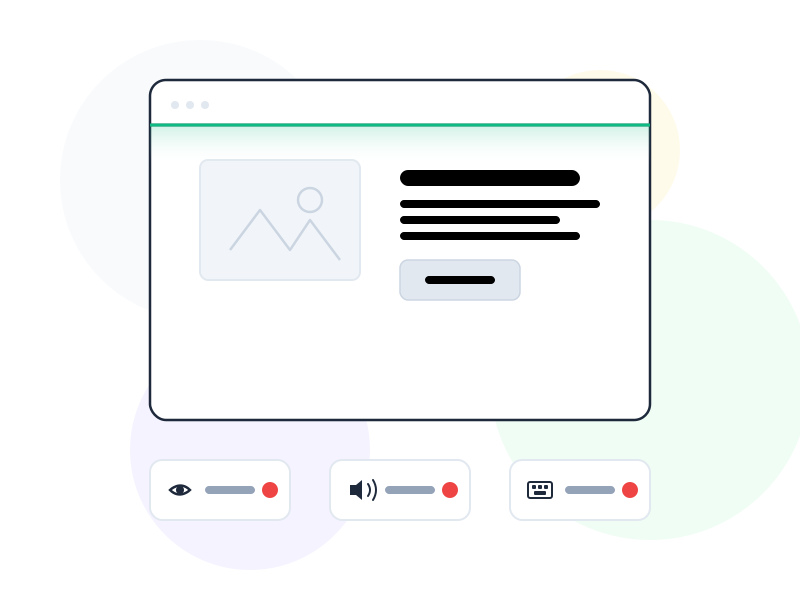
Accessibility in UX design means creating digital products that people with disabilities can perceive, understand, navigate, and interact with effectively. It covers visual, auditory, motor, and cognitive needs – and when done well, it makes products better for everyone.
Why It Matters
Over one billion people worldwide live with some form of disability. That’s roughly 15% of the global population. If your product isn’t accessible, you’re excluding a massive group of potential users – not by intent, but by oversight.
Beyond the ethical case, accessibility is increasingly a legal requirement. Laws like the Americans with Disabilities Act (ADA), the European Accessibility Act, and Section 508 mandate that digital products meet baseline standards. Companies that ignore these requirements face lawsuits, fines, and reputational damage.
But here’s what often surprises teams: accessible design benefits everyone. Captions help people in noisy environments. High contrast helps users in bright sunlight. Keyboard navigation helps power users who prefer not to reach for a mouse. Designing for the edges improves the experience at the center.
How It Works / Types
The Web Content Accessibility Guidelines (WCAG) 2.2 provide the global standard for digital accessibility. They organize requirements around four principles, known as POUR:
Perceivable
Users must be able to perceive all content. This means providing text alternatives for images, captions for video, and ensuring sufficient color contrast. If information is only conveyed through color, users with color vision deficiency will miss it. Understanding color theory – particularly contrast ratios and how different color combinations read for users with color vision differences – is essential for meeting WCAG contrast requirements.
Operable
Users must be able to operate the interface using their preferred input method – whether that’s a mouse, keyboard, touch screen, voice command, or switch device. Every interactive element must be reachable and usable via keyboard alone.
Understandable
Content and navigation must be predictable and readable. Use clear language, consistent layouts, and helpful error messages. Forms should explain what’s expected before users make mistakes, not just after.
Robust
Content must work reliably across different browsers, devices, and assistive technologies like screen readers. This means using semantic HTML, proper ARIA attributes, and testing with actual assistive tools.
WCAG 2.2 defines three conformance levels: A (minimum), AA (recommended target for most products), and AAA (highest). Most legal requirements and industry standards target AA compliance.
Real-World Example
Consider how Apple approaches accessibility in iOS. The VoiceOver screen reader doesn’t feel like an afterthought – it’s deeply integrated into every app and gesture. Users can navigate the entire operating system without seeing the screen.
But the impact goes beyond screen readers. Dynamic Type lets users adjust text size system-wide, and apps that support it automatically reflow their layouts. Reduce Motion respects users who experience discomfort from animations. These features were designed for specific accessibility needs, but millions of users without disabilities use them daily because they simply make the experience better.
How to Apply
-
Start with semantic HTML. Before reaching for ARIA attributes, use the right HTML elements. A
<button>is inherently accessible. A styled<div>with a click handler is not. Proper headings (<h1>through<h6>) create a navigable document structure for screen readers. -
Maintain a minimum contrast ratio of 4.5:1 for text. WCAG AA requires this for normal text and 3:1 for large text. Use a contrast checker to verify – your eyes are not a reliable measurement tool.
-
Make every interaction keyboard-accessible. Tab through your entire interface without using a mouse. Can you reach every button, link, and form field? Can you see where the focus is? If not, your keyboard users are stuck.
-
Write meaningful alt text for images. Describe what the image communicates, not what it depicts. “Bar chart showing 40% increase in sign-ups after redesign” is useful. “Image of a chart” is not.
-
Test with assistive technology. Turn on VoiceOver (Mac/iOS) or NVDA (Windows) and try to complete key tasks in your product. This five-minute exercise reveals more issues than any automated audit.
Common Mistakes
Relying solely on automated testing tools. Tools like Lighthouse or axe catch roughly 30-40% of accessibility issues – things like missing alt text or insufficient contrast. They can’t detect whether a custom widget is actually usable with a keyboard or whether content makes sense when read aloud. Automated scans are a starting point, not a finish line.
Treating accessibility as a final checklist. When teams bolt accessibility onto a finished design, the fixes are expensive and feel like patches. Baking accessibility into the design process from the start – choosing colors with sufficient contrast, structuring content with proper headings, designing visible focus states – costs almost nothing extra.
Assuming accessibility only means screen reader support. Screen readers are one piece of the puzzle. Accessibility also covers motor impairments (can users interact without fine mouse control?), cognitive needs (is the content clear and predictable?), and temporary situations (can someone use your product one-handed while holding a coffee?).
Accessibility is embedded in interaction design at every level – focus states, keyboard navigation, touch target sizing, and animation all have accessibility dimensions that must be designed intentionally, not retrofitted. Responsive design and accessibility intersect significantly: layouts that reflow for small screens must maintain logical reading order and keyboard navigability, not just visual correctness.
Further Reading
- Accessible Design for Users With Disabilities – Nielsen Norman Group’s overview of how accessibility helps users with diverse abilities
- What is Accessibility? – Interaction Design Foundation’s guide to accessibility principles and practices