
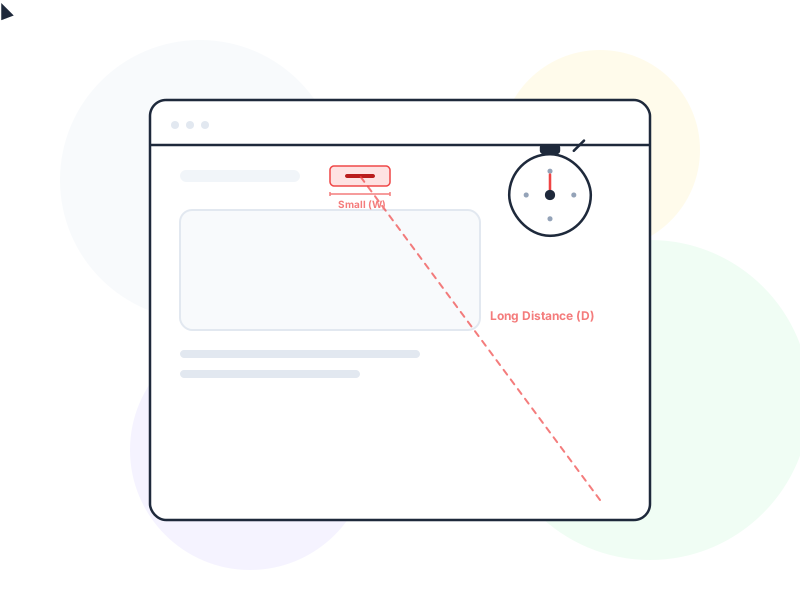
Fitts’s Law is a predictive model of human movement that states: the time to reach a target depends on the distance to the target and the size of the target. In UX terms, bigger and closer targets are faster and easier to hit. This simple principle has profound implications for how we size buttons, place navigation, and design touch interfaces.
Why It Matters
Every interaction in a digital product involves targeting – tapping a button, clicking a link, selecting a menu item. Fitts’s Law quantifies what feels intuitive: small, distant targets are hard to hit, and large, nearby targets are easy. But designers routinely violate this principle by making critical actions too small, placing them too far from where users’ attention already is, or cramming interactive elements so close together that users hit the wrong one.
Understanding Fitts’s Law helps you make evidence-based decisions about interface layout. It explains why mobile hamburger menus at the top of the screen are harder to reach than bottom navigation bars. It explains why tiny “X” buttons on modal close icons frustrate users. And it provides a mathematical foundation for touch target sizing guidelines used by Apple, Google, and WCAG accessibility standards.
The law doesn’t just apply to clicking and tapping. It governs any pointing movement – mouse cursors, stylus input, trackpads, and even eye-tracking interfaces. Wherever users need to aim at a target, Fitts’s Law applies.
How It Works / Types
The Formula
Fitts’s Law is expressed as:
T = a + b × log₂(2D / W)
Where:
- T = time to complete the movement
- D = distance from the starting point to the center of the target
- W = width (size) of the target along the axis of motion
- a and b = constants that depend on the input device and context
The key insight: movement time increases logarithmically with distance and decreases logarithmically with target size. Doubling a button’s size doesn’t cut the time in half, but it makes a meaningful difference – especially for small targets where every pixel matters.
Practical Implications
Bigger targets are faster. A 44×44px touch target is significantly faster to hit than a 24×24px one. The difference feels small in isolation but compounds across hundreds of daily interactions.
Closer targets are faster. A “Submit” button directly below a form is faster to reach than one at the top of the screen. Placing actions near the content they relate to minimizes cursor travel.
Edge and corner targets are effectively infinite. Screen edges act as physical barriers – the cursor can’t overshoot. This is why macOS places the menu bar at the top screen edge: users can fling the cursor upward without worrying about precision. Corner targets (like the Windows Start button) benefit from two edges, making them the easiest targets on screen.
Very small targets suffer disproportionately. Fitts’s Law has a logarithmic relationship, which means the penalty for being too small is worse than the reward for being bigger. Going from 20px to 40px helps more than going from 40px to 80px.
Real-World Example
Compare the “Compose” button in Gmail’s desktop and mobile versions. On desktop, it’s a large, prominent button in the top-left of the sidebar – easy to reach because it’s near the edge of the interface and sized generously. On mobile, Gmail uses a floating action button (FAB) in the bottom-right corner. This placement puts it near the user’s thumb in a natural holding position, maximizing reachability.
Both placements reflect Fitts’s Law. The desktop version takes advantage of edge proximity. The mobile version prioritizes the thumb zone – the area of the screen most easily reached during one-handed use. A “Compose” button at the top of a mobile screen would technically work, but Fitts’s Law tells us it would be slower and more awkward to reach for most users.
How to Apply
-
Size touch targets at minimum 44×44px. Both Apple’s Human Interface Guidelines and WCAG 2.2 (Success Criterion 2.5.8) recommend this minimum for touch targets. Google’s Material Design guidelines suggest 48×48dp. When in doubt, go bigger – nobody complains that a button was too easy to tap.
-
Place primary actions in high-reach zones. On mobile, the bottom third of the screen is the easiest area to reach with a thumb. On desktop, areas near the current cursor position or along screen edges are fastest. Put your most-used actions in these prime locations.
-
Increase spacing between adjacent targets. When interactive elements are too close together, users hit the wrong one – especially on touch screens. Maintain at least 8px of spacing between tappable elements. For destructive actions (like “Delete” next to “Save”), increase spacing further or add confirmation.
-
Make primary actions larger than secondary ones. Size communicates importance and makes the most common action the easiest to hit. A “Save” button should be larger than a “Cancel” button. A “Buy Now” button should be larger than “Add to Wishlist.” This serves both affordance (visual importance) and Fitts’s Law (faster targeting).
-
Use full-width buttons on mobile. A button that spans the full screen width is an effectively infinite target along the horizontal axis – users only need to aim vertically. This is why mobile checkout flows use full-width “Continue” and “Pay” buttons: Fitts’s Law makes them nearly impossible to miss.
Common Mistakes
Making close buttons too small. Modal close icons, notification dismissals, and cookie banner “X” buttons are frequently tiny – 16×16px or smaller. Users trying to dismiss unwanted content are already frustrated; a target they can barely hit makes it worse. Size close buttons at minimum 44×44px, even if the visible icon is smaller – use padding to expand the tap area.
Placing destructive actions near constructive ones. “Delete” next to “Edit,” “Cancel” next to “Submit,” “Unsubscribe” next to “Update Preferences.” When targets of opposite intent sit close together, Fitts’s Law guarantees accidental taps. Separate these actions spatially, use distinct colors, and add confirmation for irreversible ones.
Fitts’s Law is one of the foundational models in interaction design, quantifying how target size and distance affect the speed and accuracy of every pointing action. It applies with particular force to calls to action – the primary buttons that drive user decisions – where size and placement directly determine engagement rates. In responsive design, Fitts’s Law sets minimum touch target sizes and defines optimal placement zones within the mobile thumb reach area.
Ignoring the thumb zone on mobile. Top-of-screen navigation requires users to stretch or shift their grip – a movement that’s slow (Fitts’s Law), uncomfortable, and increases the risk of dropping the phone. Bottom navigation bars, floating action buttons, and swipe gestures all keep primary interactions within natural thumb reach.
Further Reading
- Fitts’s Law and Its Applications in UX – Nielsen Norman Group’s detailed explanation of the law with interactive examples and design implications
- What is Fitts’s Law? – Interaction Design Foundation’s overview of Fitts’s Law and its role in human-computer interaction